How to make Thanksgiving labels in Google Sheets
Fall is here and one of our favorite holiday is just around the corner: Thanksgiving! This guide teaches you how to make Thanksgiving labels in Google Sheets. Here, we show you in 10 easy steps how to insert a picture and some text into your labels or gift tags, and how to print them.
🦃 How to make Thanksgiving labels step-by-step:
- Open a spreadsheet
- Open Smart Label Maker
- Select a template
- Design your Thanksgiving labels
- Add text and personalized merge fields
- Create your Thanksgiving labels
- Preview before printing
- Print your Thanksgiving labels
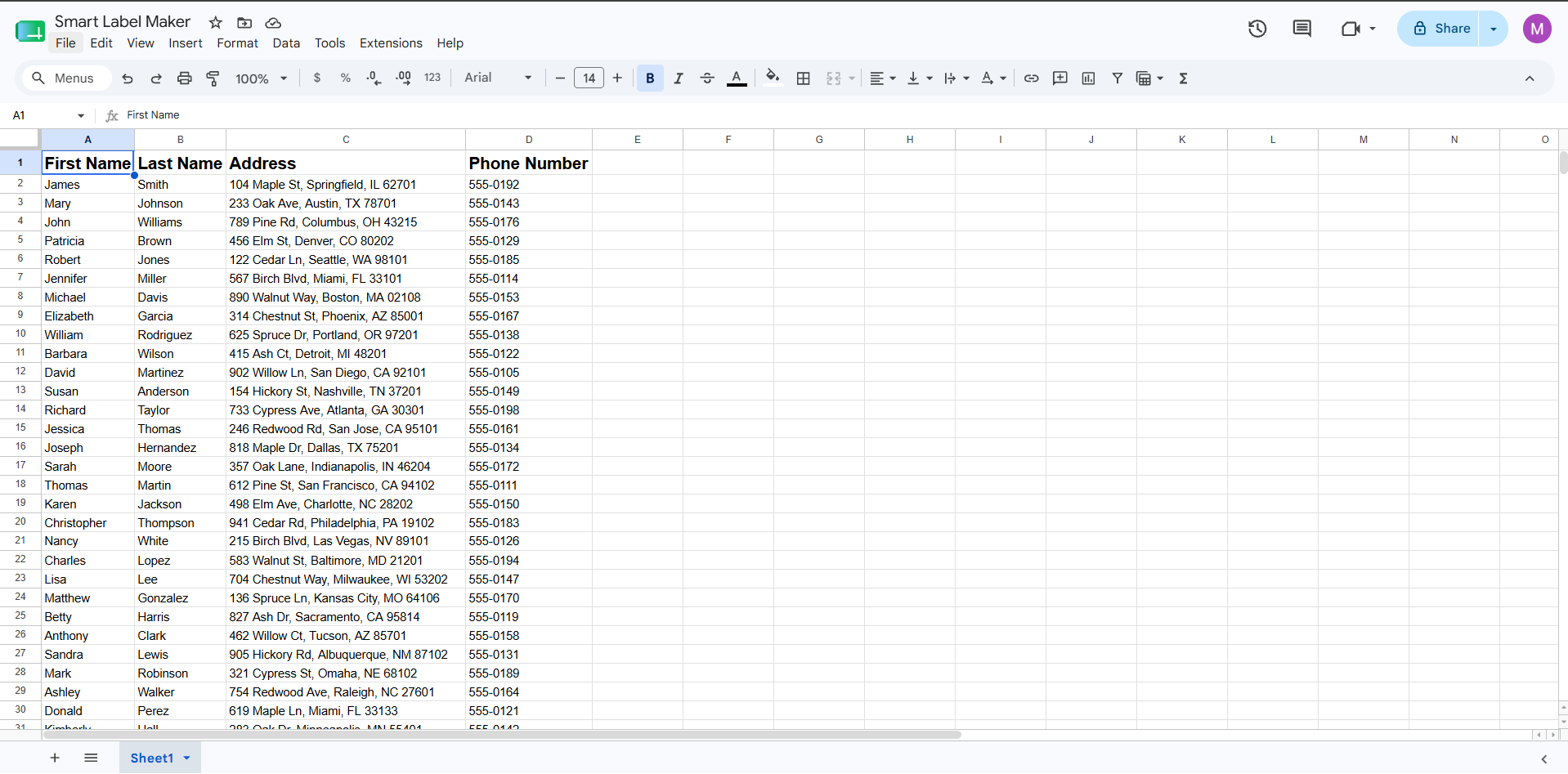
1. Open a spreadsheet
To begin, Open a new Google Sheets in Google Sheets. You can leave it blank. This spreadsheet will be used to create and print the Thanksgiving labels..
2. Open Smart Label Maker
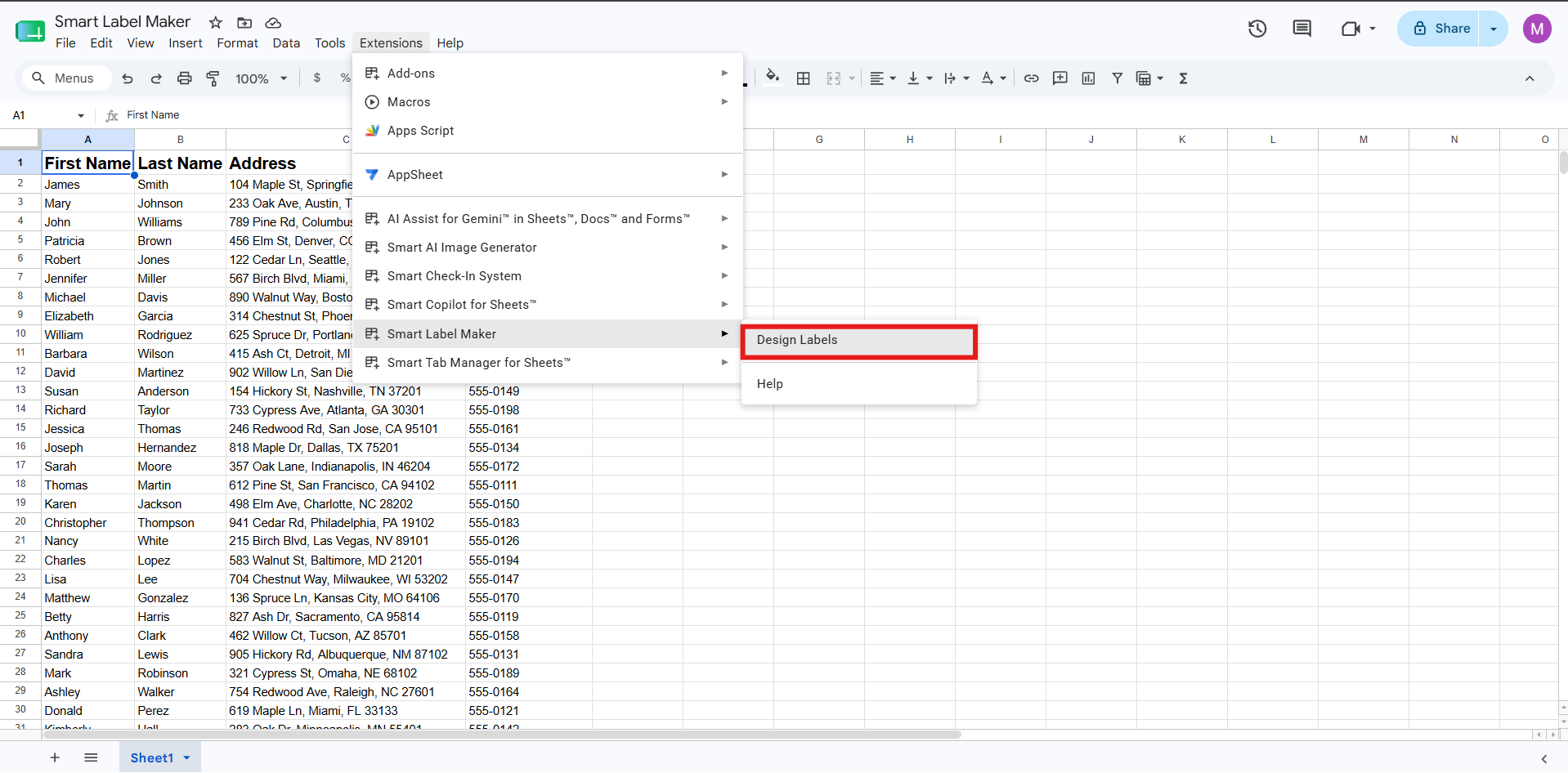
Then, go to the “Extensions” menu (previously named “Add-ons”) and select “Create & Print Labels”. If you haven’t installed the Labekmaker add-on yet, you can Smart Label Maker from the Google Workspace Marketplace.
3. Select a template
In the Smart Label Maker sidebar, click on “Select a template”. You will be given several template options. As of writing, you can choose from over 5000+ labels.
There are several categories such as Avery® US Letter, Avery® A4, Avery® Zweckform to print Avery ® Labels for Black Friday, and also Sheetlabels.com, OnlineLabels.com and Herma. In this label guide, we will be using the “Avery 5160” template, which is a commonly used label format.

4. Design your Thanksgiving labels
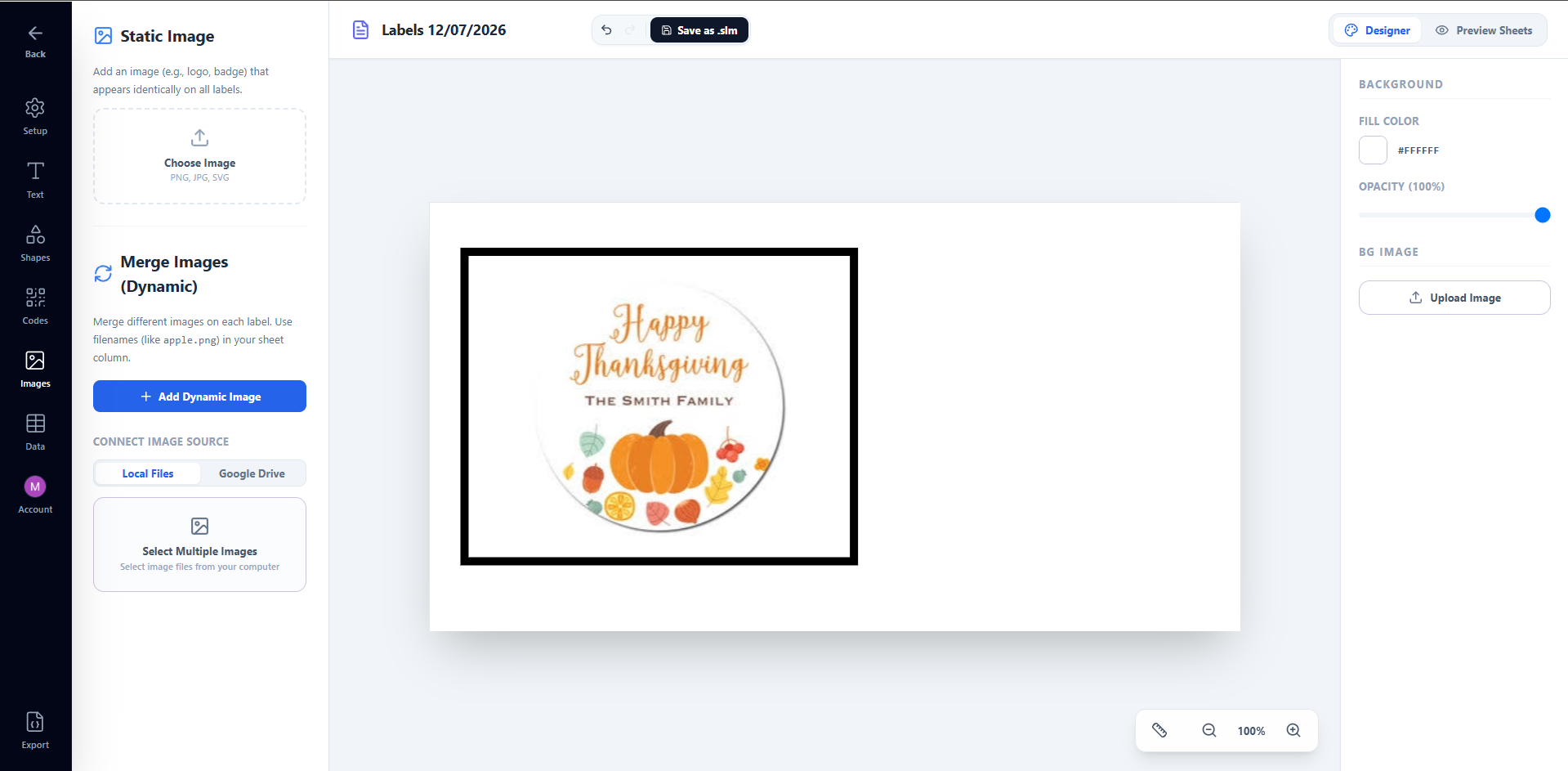
Now is the time to start designing your very own labels for Thanksgiving. The new interactive design canvas allows you to build beautiful labels with ease.
You can add text boxes, images, and shapes directly in the canvas. To add an image in your Thanksgiving labels, use the image insert tool in the canvas editor.
5. Add text and personalized merge fields
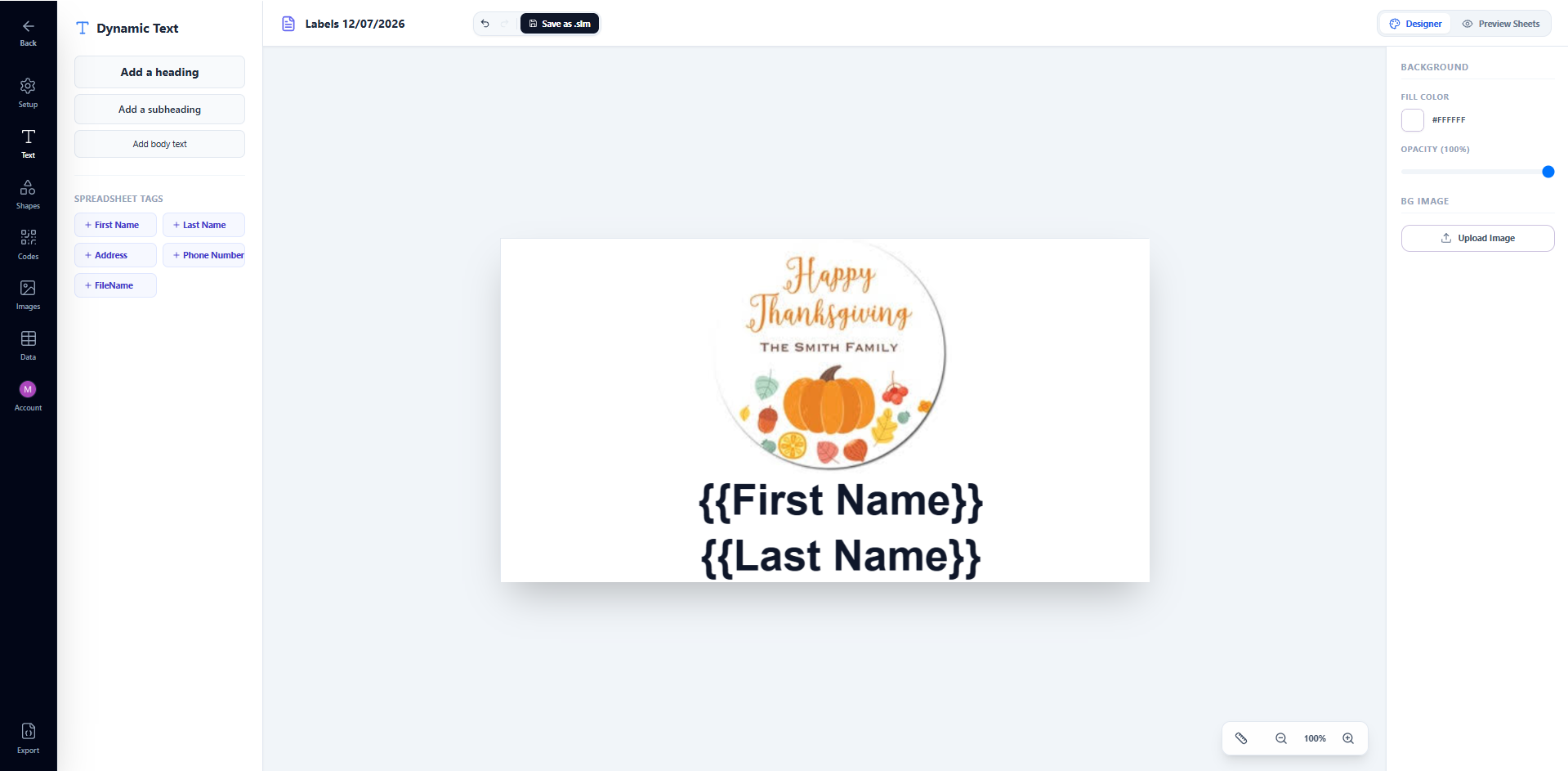
If you have a spreadsheet with the list of your guests or recipients, you can print out personalized labels with their names. Just add a text box and insert a merge field like {{First Name}}, {{Last Name}}.
Feel free to increase the font size, add some colors, and pick a beautiful font that matches your Thanksgiving theme!
6. Create your Thanksgiving labels
When you’re happy with your Thanksgiving labels design, click on “Create labels” or the Export button in the Labelmaker sidebar. Wait a few moments while the app generates a high-quality PDF document with your labels.
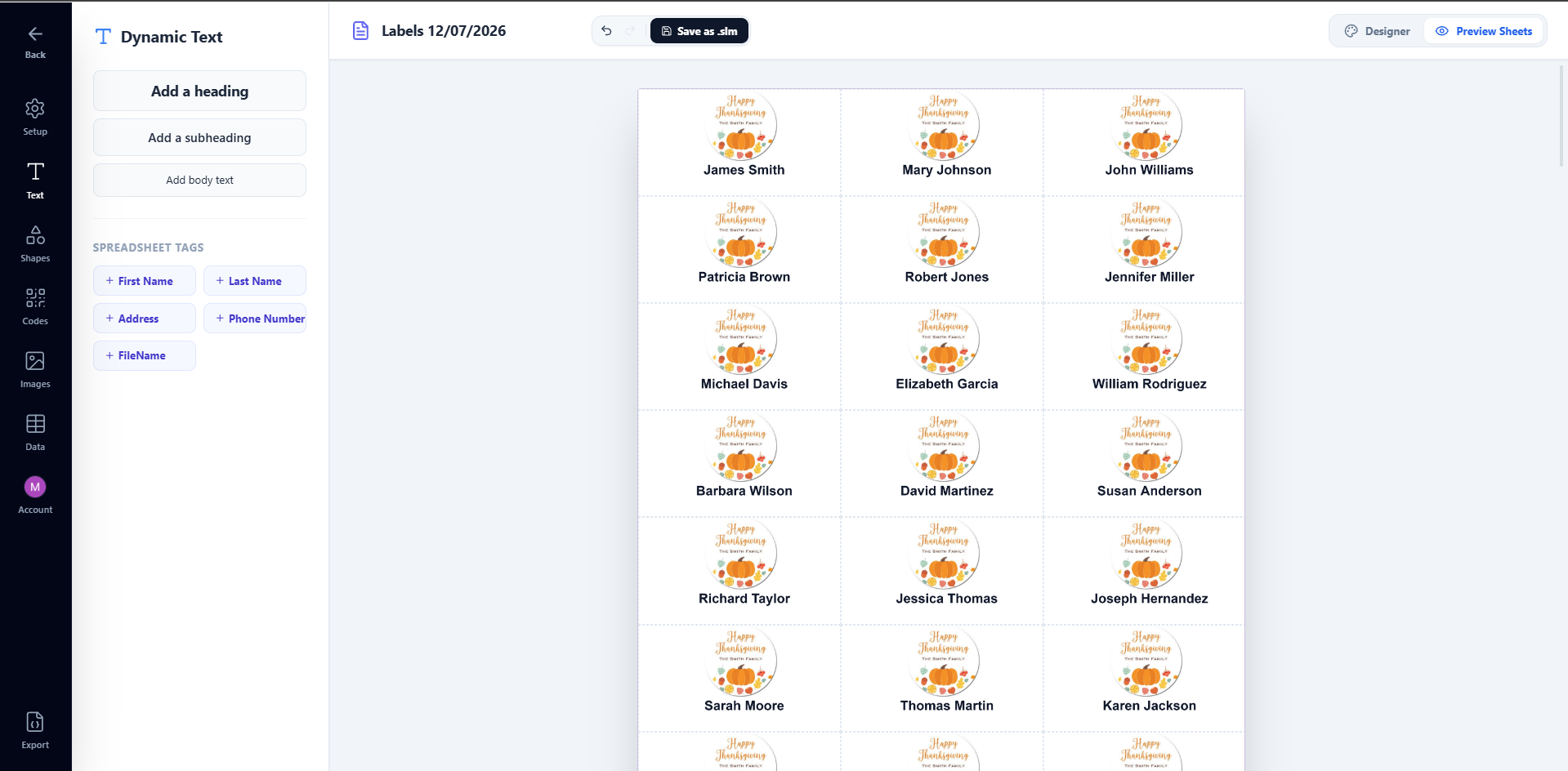
7. Preview before printing
Before printing your work, check that everything is in order, that there are no misalignment issues. Should you need to make some changes, just go back to the original document. Once the modifications are made, simply click on “Create labels” again. This will create another page of labels.
8. Print your Thanksgiving labels
To print your Thanksgiving tags, click on “File” > “Print”. In the print dialog, check that the margin is set to none and the scale to 100%. Depending on the label format you chose, you might need to adapt the size of the page. In our example, the Avery® US Letter 5160 requires the size to be “Letter”.
It’s your turn to create Thanksgiving labels!
Now you know how to make your own Thanksgiving labels using the Google suite. A personal touch to your gift wrapping will wow your family and friends!
Using this guide, you’ll be able to print Avery Labels for Thanksgiving with Google Sheets as well as other kinds of labels and gift tags.
Smart Label Maker to create Thanksgiving labels from Google Sheets now! To learn more, check out our other tutorials. We also have a guide in case you’d like to print labels from Google Sheets rather than Google Sheets.